What is Claude, what is design, and why AI designs all look the same
<you-will-learn>
- What Claude is, and how to talk to it
- What “design” means when we talk about apps
- Why AI-made apps all look alike — and the simple fix
- Your first three conversations with Claude
Welcome! You don't need to know anything to start. No design skills, no coding, no AI experience. If you can send a message to a friend, you can do this course. We'll go one small step at a time, and every step tells you exactly what to type and what you should see.
Part 1 — What is Claude?
Claude is an AI assistant made by a company called Anthropic. You open it on a website, a desktop app or a phone app, type a message, and it types back. It's like chatting with a very fast, very patient helper who has read a huge amount about almost everything.
Three things make Claude useful for design:
- It understands normal words. You don't need special commands. “Make the button bigger” works.
- It can look at pictures. You can upload a screenshot and ask about it.
- It can build things you can see. Ask for a screen and it makes a real, clickable page — not just a description.
Part 2 — Get set up (5 minutes)
- Go to
claude.aiin your browser and sign up with your email or Google account. - Pick a plan. You can start free. Skills (which we use from Lesson 2) need a paid plan such as Pro; you can upgrade when you get there.
- Find the message box at the bottom of the screen. That's where you type. The paperclip or + button next to it lets you attach pictures and files.
- Optional: install the Claude desktop app. It's the same thing, just easier to keep open while you work.
Part 3 — Your first three conversations
Do these now. Each one teaches you something about how Claude works.
Conversation 1: just ask
What you should see: a short, friendly explanation. Notice you didn't need any special format — you just asked.
Conversation 2: ask it to make something
What you should see: a panel opens next to the chat with a real little app in it. Tick the boxes — they work. That panel is called an artifact.
Conversation 3: change it
What you should see: the same screen, updated. This is the heart of designing in Claude: ask, look, adjust. You'll do this loop thousands of times.
Five Claude features you'll use in this course
| Feature | What it does | Why designers love it |
|---|---|---|
| Projects | A folder of files + instructions every chat inside can see | Upload your screenshots once, not every chat |
| Artifacts | Real pages and screens in a side panel | Click through your designs; share with a link |
| Skills | Saved instructions Claude loads by itself | Your rulebook, always on (Lesson 2) |
| Uploads | Screenshots, PDFs, style guides | “Make it look like this” actually works |
| Memory | Claude remembers things about you between chats (if you turn it on) | Your role and preferences carry over |
Part 4 — What is “design”?
Think about the apps on your phone — a shopping app, a bank app, a food delivery app. Someone decided where every button goes, what colour it is, how big the words are, and what happens when you tap. That someone is a designer, and those decisions are design.
Good design means people can use the app without thinking. It has four simple jobs:
| Job | In plain words | Example |
|---|---|---|
| Clear | You know what the screen is for in 3 seconds | A checkout screen with one big “Pay” button |
| Easy | The next step is obvious | The button says what happens: “Add to cart”, not “Submit” |
| Consistent | Same things look the same everywhere | Every main button is the same colour and shape |
| On brand | It feels like this app, not any app | You'd recognise it even with the logo hidden |
Part 5 — The problem: AI designs all look the same
Try it yourself right now:
You'll get something that looks okay — but it looks like every app. Probably purple or blue, round boxes, a big number, some icons. Why?
Imagine asking a new student to draw your house. They've never seen it. So they draw a “house”: square, triangle roof, a door, two windows. Not wrong — just not yours. The AI is that student. It has never seen your app, so it draws the average of all apps.
Most people try to fix it with longer messages: “use green #0F3D2E, 16px padding, rounded corners, our font…”. It works for one screen. Then the next chat forgets half of it. The one after that drifts more. You end up re-explaining your app forever.
Part 6 — The fix: a rulebook Claude keeps
What if you gave the student a photo of your house and a list — “blue door, red roof, three windows, a mango tree on the left”? Now every drawing looks like your house.
That's the whole idea of this course. You write down your app's look as a rulebook — colours, sizes, buttons, words, and things to never do — and save it inside Claude as a skill. From then on, every chat starts with your rules already loaded. “Design the settings screen” becomes enough.
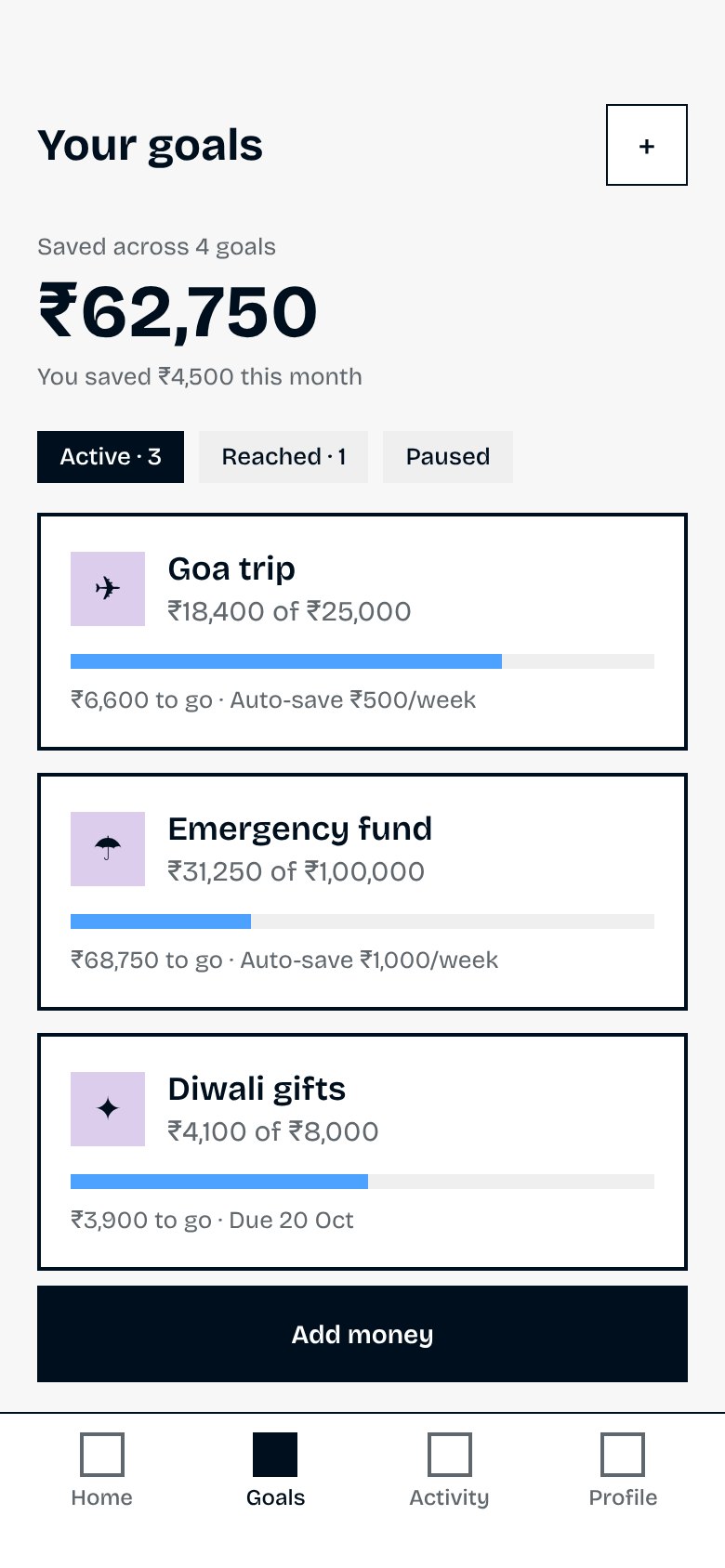
See the difference
This screen is from a pretend savings app called Saffron that we use throughout the course. The only message typed was “design the Goals tab”. Everything else — the colours, the money format, the friendly words — came from Saffron's rulebook.
The road ahead: Level 0 → 100
| Level | You learn to… | You'll be able to say |
|---|---|---|
| 10 | Make your app's rulebook and put it in Claude | “Claude knows what my app looks like.” |
| 25 | Make real screens with every version | “I can design a screen in minutes.” |
| 50 | Spot what's wrong and fix it precisely | “I can review a design like a senior designer.” |
| 75 | Check whole journeys and collect feedback | “My flows don't have holes.” |
| 90 | Hand designs to engineers and share with a team | “My whole team designs from one system.” |
| 100 | Build your own tools with Claude | “I don't just use AI, I build with it.” |
- I have a Claude account and I've had at least three chats
- I made an artifact and changed it with a follow-up message
- I can explain, in one sentence, why AI designs look generic
- I know what a skill is: a rulebook Claude keeps
Side quest (10 minutes)
Pick one app you want to design for — your own product, your company's app, or any app you like for practice. Take 4–6 screenshots of it: a home screen, a list, a form, a details page, and a pop-up or bottom sheet if it has one. Put them in one folder called my-app-screens. You'll use them in Lesson 2.